
FileRecover: Restore & QR
notStudioTools
4.215.00 Reviews
- Version
- 1.0
- Installs
- 100.00K
- Age Rating
- Everyone
Screenshots
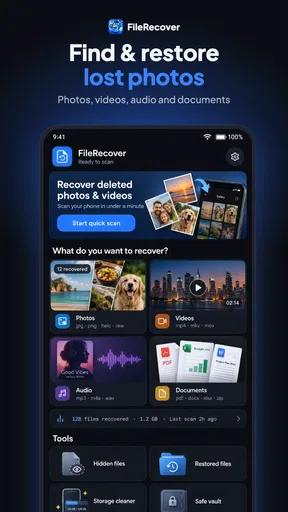
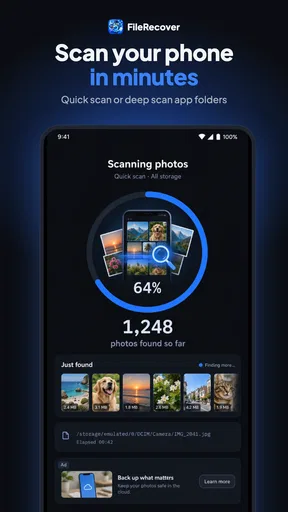
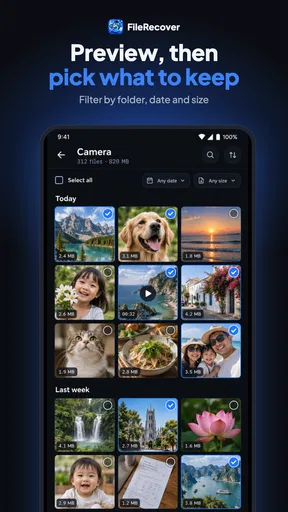
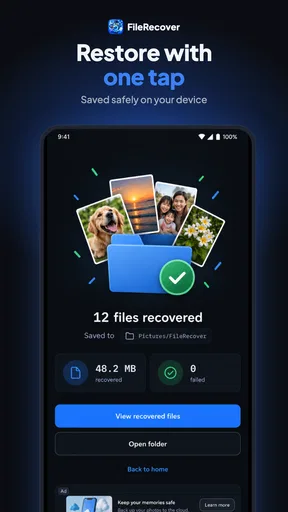
Our Review of FileRecover: Restore & QR
 Analysis by Appyee
I approached FileRecover: Restore & QR as a practical toolbox rather than a single-purpose recovery utility. It brings together file recovery, storage cleanup, QR and barcode scanning, and file protection in one Android app from notStudio. That combination is useful because these tasks often appear together in real life: a phone runs short of space, an important image seems to have disappeared, and a QR code needs scanning at the same time.
My first impression is that the app is aimed at people who want a straightforward place to start before installing several separate tools. It is free, rated for Everyone, and works with Android 8.0 or later. The current release is version 1.0, so I would treat it as a young utility and use it with sensible care when handling personal files. Its average rating is 4.2 from around 1.2 thousand ratings, while its reach has passed 100 thousand installs. Those figures suggest that people are finding it useful, but they do not replace checking what the app asks to access on your own device.
What FileRecover is really useful for
The strongest idea here is convenience. Instead of moving between a file manager, a storage analyzer, a QR reader, and a vault-style tool, I can begin with one interface. That matters most when the problem is urgent. If I accidentally remove a recent photo, I do not necessarily want to research several recovery apps first. If the phone is full, I would rather inspect unnecessary files before taking more pictures or downloading another large application.
Still, I would not mistake the word “recover” for a guarantee that every deleted file can be brought back. Recovery depends on what happened after deletion, where the file was stored, and whether the phone has already reused that space. A careful workflow is therefore important: stop creating new files, avoid recording video, and do not install multiple recovery tools immediately after losing something valuable. Installing software can itself write data to storage and reduce the chance of finding older material.
That is one of the less obvious trade-offs with an all-in-one tool. It reduces app switching, but it also puts several sensitive activities under one roof. I like the convenience, yet I would use the recovery function selectively rather than scanning constantly. A scan should answer a specific question, such as whether a recently deleted image still appears, not become a routine substitute for backups.
Recovery is best treated as a first response
In an everyday situation, imagine deleting a document from the Downloads folder while clearing space before a trip. My advice would be to pause immediately, open the recovery area, and search with a narrow expectation: look for the likely file type or location instead of assuming the tool will reconstruct everything. If the document appears, review its name and preview carefully before restoring it. Restoring to a different folder is also a sensible habit because it avoids confusing the recovered copy with the original path.
If nothing useful appears, I would move to the phone’s existing recycle bin, cloud backup, messaging history, or computer backup before repeatedly scanning. Those alternatives may be better for files that were synchronized or intentionally backed up. FileRecover is more appealing when the missing item was local and recently removed; it is less suitable as a replacement for a proper backup routine.
Another practical point is storage. Recovery results can include duplicates, temporary fragments, or files whose names no longer make much sense. Restoring everything at once may recreate the storage problem that led you to the app. I would preview candidates, recover only what matters, and then open the restored files in their normal apps. A file that appears in a result list is not necessarily a complete, readable file.
Cleaning storage without deleting the wrong thing
The cleanup side is potentially more immediately useful than recovery because low storage is a recurring problem. I would begin by reviewing large videos, repeated downloads, old screenshots, and files left behind by apps I no longer use. The important distinction is between identifying candidates and approving deletion. A good cleanup habit is to inspect the path and last-modified context before removing anything, especially when filenames are vague.
I would be particularly cautious with folders created by messaging apps. A picture may look like a duplicate but still be the only copy saved from a conversation. Similarly, documents in Downloads can be mistaken for disposable installers or cached material even when they are needed later. The app can help surface clutter, but the final decision should remain mine.
There is also a useful sequencing trick: clean first, then recover only the files that are genuinely needed. Doing the opposite can leave several versions of the same item and make it harder to tell which copy is intact. After restoring, I would move important files into a clearly named folder and create a backup through the storage method I already trust.
For people who prefer automatic cleaning, this may feel slower than a one-tap optimizer. I consider that a positive when personal photos and documents are involved. A quick button is convenient, but a review screen and deliberate selection are safer for mixed storage. I would skip any cleanup action that does not make the affected location and file type clear before confirmation.
QR and barcode scanning in the same workflow
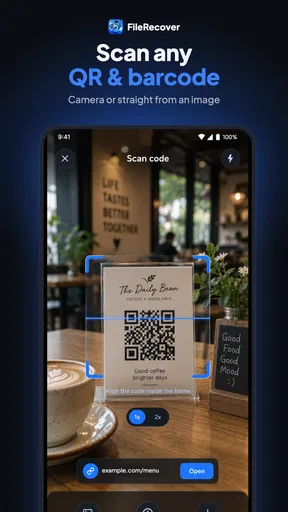
The scanning function makes sense as a convenience feature rather than the main reason to choose this app. I can imagine using it while clearing storage: scan a product barcode, read a QR code from a poster, then return to file work without opening another utility. That is a small benefit, but it gives the app a practical role beyond emergency recovery.
What matters most with QR scanning is not speed but destination awareness. A code can lead to a website, a payment request, a download, or a sign-in page. I would inspect the displayed address and context before opening anything, especially when the code comes from an unexpected message or a public sticker. A scanner should decode information; it should not make a risky destination trustworthy merely because it can read it.
For frequent barcode inventory work, a dedicated scanner may still be better. Specialized tools often organize scan history or support a particular retail workflow, while an all-purpose utility is more convenient for occasional use. FileRecover’s scanner is therefore a useful extra for me, not a reason to replace a professional inventory system.
Protecting files and deciding what deserves privacy
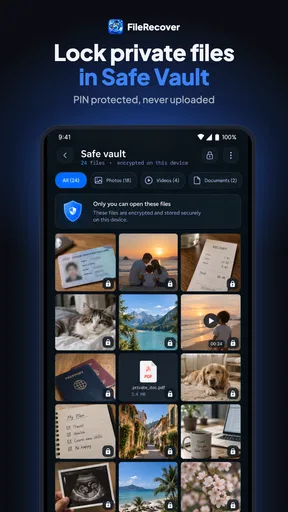
The file-protection function is the area where I would slow down most. I would use it for documents or images that I do not want casually visible in the ordinary file list, but I would not place my only copy of an important file inside any single app. Protection and backup solve different problems: one limits casual access, while the other helps recover from loss or device failure.
Before moving anything into a protected area, I would test the process with a nonessential file. I would confirm that I can open it, restore it, and recognize where it goes afterward. This is a simple but valuable check because privacy features can create friction when switching phones, clearing app data, or changing how files are organized. A protected file that becomes difficult to retrieve is not a successful workflow.
I would also keep a separate, secure backup of irreplaceable material. That recommendation is especially important for identity documents, work files, family photos, and anything needed during travel. If the phone is lost, damaged, reset, or unavailable, an on-device protection feature cannot serve as the only safety net. The app is more convincing as a convenient privacy layer than as a complete document-security strategy.
Trust, controls, and moments that need extra care
I’d use this section to think through the moments when FileRecover handles more sensitive material than an ordinary scan, from limiting access to checking a QR destination before acting on it. My rule is to begin with a small, low-risk task and confirm the result before trusting it with anything important; next, I’d look at how those careful choices affect day-to-day use.
What I would check before granting access
Because this app works with files and scanning, I would review Android’s permission prompts rather than approving everything automatically. The exact controls shown can depend on the device and Android version, so I would read each request in context and use the narrowest option available. If the app asks for access that does not seem connected to the task I am performing, I would pause and investigate through Android settings before continuing.
This is not just a privacy concern. Limiting access can also reduce accidental exposure during cleanup. I would start with a small, relevant folder where Android allows that choice, test the workflow, and expand access only if the recovery or cleanup task genuinely requires it. After finishing, I would revisit the app’s permissions and remove access that I no longer need.
I would apply the same caution to camera access for QR and barcode scanning. Granting camera access while scanning is understandable; leaving it enabled indefinitely is a separate decision. Android’s permission manager makes it practical to review this later. The useful principle is simple: allow the camera for the scan, then check whether the permission can be limited or withdrawn without affecting file tools.
Data-sensitive tasks deserve a deliberate workflow
Recovery and cleanup can reveal more than users expect. A scan may surface old screenshots, private downloads, thumbnails, or fragments that had been forgotten. I would avoid running these functions in front of other people and would review result lists before sharing the screen. If the phone is used for work, I would also consider whether company documents or customer information could appear among the results.
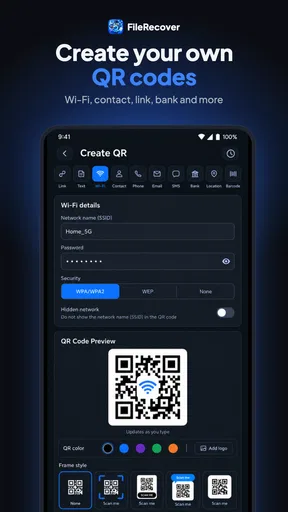
QR scanning has its own sensitive moment. A code may contain a login link or a payment destination, so I would not scan unknown codes while already signed into important accounts unless I am ready to verify the result carefully. I would treat the decoded text as untrusted input until I recognize the source and destination.
File protection also requires a recovery plan. Before securing a file, I would decide how I will access it later and where the backup copy belongs. I would avoid experimenting with the feature on the only copy of a passport scan or a work contract. Testing with a harmless image first takes little time and can reveal whether the process fits my habits.
Where it beats separate tools, and where it does not
Compared with using the built-in file manager alone, FileRecover offers a more focused starting point for recovery, cleanup, scanning, and protection. That makes it attractive to someone who does not want to learn several interfaces. Compared with a dedicated backup service, however, it should not be considered a complete safety system. Backups are designed around preserving copies over time; recovery tools are usually consulted after something has already gone wrong.
Compared with a specialist QR reader, the advantage is having scanning beside file tasks. The disadvantage is that occasional scanning may not satisfy people who need organized scan records or business-oriented features. A dedicated security vault may also be preferable for users who need established account recovery, device migration, or enterprise controls. I would choose this app for simplicity, not for a specialized workflow that demands extensive administration.
The free price lowers the barrier to trying it, but “free” should not encourage careless access decisions. I would judge the app by the controls Android presents on my phone and by how clearly I can understand each action before confirming it. The developer is notStudio, and the app’s early version makes that hands-on caution more important for me than assuming it covers every edge case.
Who should use it and who should pass
I can recommend FileRecover to Android users who want one practical utility for occasional file recovery, storage review, QR or barcode scanning, and basic file protection. It is especially suitable for someone who prefers guided actions over assembling several separate apps. It may also help a family member who needs a simple place to begin when storage is full or a recent file has gone missing.
I would suggest skipping it if you need guaranteed recovery, automated long-term backups, professional inventory scanning, or advanced security administration. People handling regulated business records should use tools approved for that environment rather than relying on a general-purpose phone utility. Likewise, anyone who is uncomfortable reviewing permissions and scan results may be better served by keeping files in a carefully managed cloud or computer backup system.
My practical setup would be conservative: use cleanup to identify clutter, recover only selected files, scan QR codes with destination awareness, and test protection on a disposable file before trusting it with private material. I would also keep important originals somewhere independent. That approach lets the app reduce everyday friction without making it responsible for every copy of my data.
Overall, I see FileRecover: Restore & QR as a useful, compact toolkit with a sensible range of jobs, but not a substitute for backups or specialized software. Its 4.2 average and more than 100 thousand installs make it worth considering, while the Everyone rating and free access make trying it easy on a compatible Android phone. My cautious verdict is positive: use it when convenience matters, keep control over permissions and deletions, and treat recovery and protection as helpful features rather than promises that remove the need for careful file habits.
Verdict
Strengths of FileRecover: Restore & QR
- Simple interface makes recovery tools easy to find and use.
- QR scanning can quickly open or share recovered information.
- Useful for checking whether deleted files may still be recoverable.
- Supports common file types for everyday recovery needs.
- Helpful preview options can save time before restoring files.
Limitations of FileRecover: Restore & QR
- Recovery success depends heavily on storage conditions and device access.
- Deep scans may take time and consume noticeable battery power.
- Some features may require a subscription or in-app purchase.
- Recovered files may lose their original names or folder locations.
- QR tools may be less useful if you rarely scan or create QR codes.
Similar Picks in This Category
View All
Google LLC4.0

Gboard - the Google Keyboard
Google LLC4.5

Google Play services
Google LLC4.3

Google Play Store
Google LLC4.9

Files by Google
Google LLC4.5

SHAREit: Transfer, Share Files
Smart Media4U Technology Pte.Ltd.4.3
Frequently Asked Questions
What is FileRecover: Restore & QR, and what can it do?
FileRecover: Restore & QR is an Android utility designed to help users look for deleted or lost files and scan QR codes from the same application. Its recovery tools may search available device storage for recoverable images, videos, documents, or other media, while the QR feature is intended for quickly reading links and encoded information. Results depend on the device, storage condition, and permissions granted.
Can FileRecover: Restore & QR recover every deleted file?
No recovery application can guarantee that every deleted file will be restored. When a file is removed, its storage space may eventually be reused by new data, making recovery difficult or impossible. FileRecover: Restore & QR may be more useful when you act quickly and avoid downloading, recording, or moving large files after deletion. Recovered files can also be incomplete or damaged.
What permissions does FileRecover: Restore & QR require?
The app may request access to photos, videos, files, or general device storage so it can scan for recoverable content and save restored items. Camera permission may also be needed for QR-code scanning. Before accepting, review each permission in Android settings and allow only what is necessary. If a permission is denied, some recovery or scanning features may not work correctly.
Is FileRecover: Restore & QR free to use?
The availability of features may depend on the version installed from the official app store. Some functions can be free, while advanced recovery tools, unlimited scans, or an ad-free experience may require in-app purchases or a subscription. Check the store listing and the payment screen carefully before confirming anything, especially if a trial period or automatic renewal is offered.
Is it safe to use FileRecover: Restore & QR for private files?
Use caution when scanning personal or sensitive content. Recovery utilities need access to storage, and QR scanners process the information contained in codes, which may include private links or account details. Download the app only from a trusted official source, review its privacy policy, and avoid opening suspicious QR results. Do not assume that recovered files are automatically protected or stored securely.
